How do I end protection?
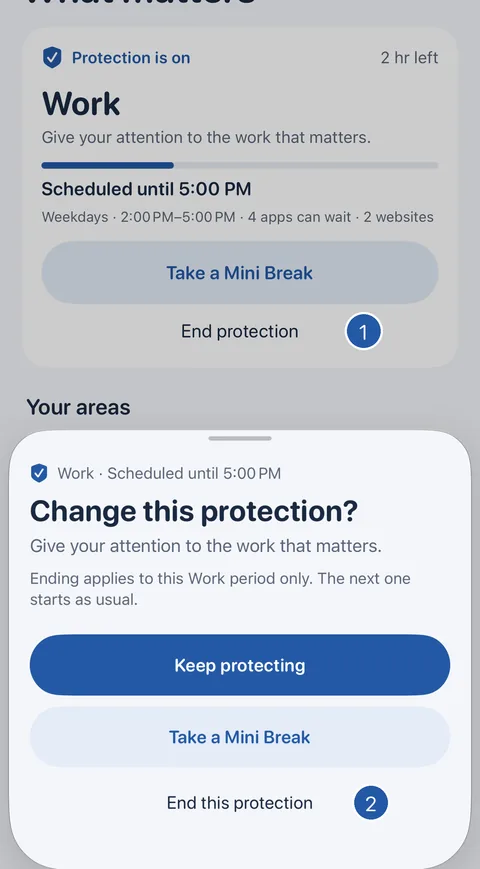
Short answer: On Home, tap End protection, then End this protection. Ending a scheduled time ends that period only; the next one starts as usual.
From Home
- Tap End protection on the card at the top of Home. Decide asks “Change this protection?”
- Tap End this protection. (Keep protecting closes the question; Take a Mini Break opens one app for a few minutes instead.)
- Home shows that nothing is protected, or the next scheduled time.
From an app that is set aside
- On the screen shown in place of the app, tap Change in Decide.
- From iOS 26.5, Decide opens by itself. On earlier versions, open Decide yourself within 15 minutes: it asks whether to change this protection.
- Tap End this protection.
If something is still protected afterwards
End only ends what Home shows. If you started a protection by hand while one of your scheduled times was already running, ending yours lets the scheduled time take over at once. To remove everything, use Stop all protection in Settings.
If Decide says “Decide couldn’t stop protection just now, so nothing was changed. Try again.”, tap Try again. Stop all protection appears in End’s place as well.
Stop all protection, in Decide’s Settings, is designed to remove every restriction Decide has applied, and it does not need a plan. If an app is still blocked afterwards, see “An app is still blocked, or End doesn’t respond”.
Still need help?
Write to us by email. It helps to say what happened, what you expected, and your iOS version. In Decide, Settings → Contact Us opens a message to the same address.