How do I stop all protection?
Short answer: Open Settings (the gear on Home) and tap Stop all protection. It is designed to remove every restriction Decide has applied and keeps your areas, apps and times. Check Home afterwards; if an app is still blocked, follow the troubleshooting steps.
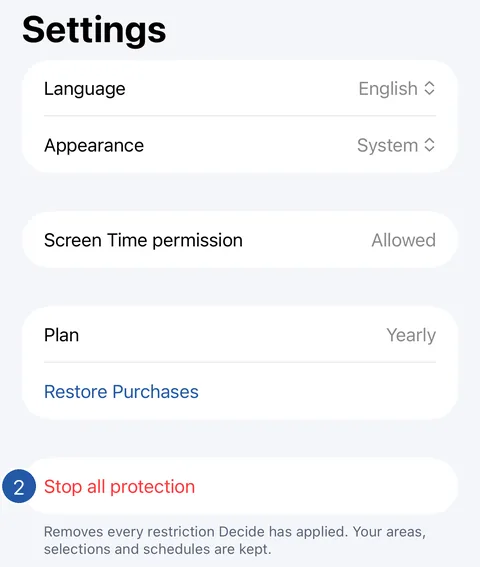
Stop all protection
- On Home, tap the gear at the top right to open Settings.
- Tap Stop all protection. There is no extra question.
- Tap Done and check Home: it should say that nothing is protected. If it doesn’t, or an app is still blocked, see “An app is still blocked, or End doesn’t respond”.
What it does
Stop all protection is designed to:
- end a protection you started, and any Mini Break;
- end every scheduled time that is running right now, in every area;
- keep your areas, selections and schedules — each schedule’s next time starts as usual;
- work whether or not Decide is unlocked.
Stop all, or Reset Decide?
Reset Decide, at the end of Settings, also removes every restriction, but deletes everything Decide stored on this iPhone: your areas, selections and schedules. It asks first and cannot be undone. Use Stop all protection unless you want to start over. Neither changes your purchases.
If Decide says it couldn’t stop protection just now, nothing was changed: tap Stop all protection again.
Still need help?
Write to us by email. It helps to say what happened, what you expected, and your iOS version. In Decide, Settings → Contact Us opens a message to the same address.