How do I take a Mini Break?
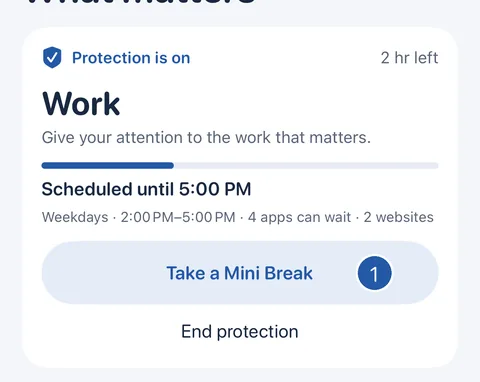
Short answer: While protection is on, tap Take a Mini Break, choose one of the protected apps and pick 5, 10 or 15 minutes. Everything else stays protected, and the app is protected again by itself when the time is up.
Start a Mini Break
- On Home, tap Take a Mini Break.
- Choose one of the apps this protection blocks.
- Tap 5, 10 or 15 minutes. The Mini Break starts straight away.
During and after
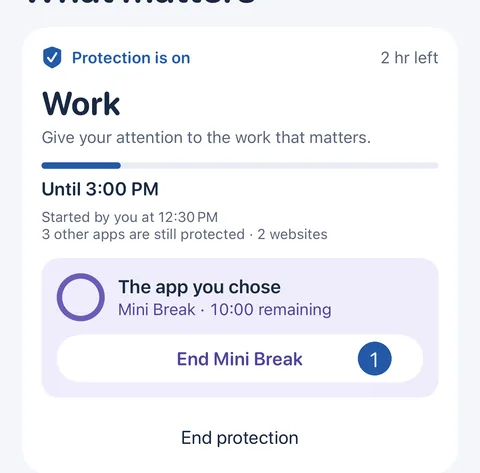
- Home shows the app, the time remaining and how many other apps are still protected. To stop early, tap End Mini Break.
- When the time is up, Decide protects the app again by itself, even if Decide is closed. Until it has confirmed that, Home says so.
Other ways in, and limits
From the screen shown in place of an app, tap Change in Decide, then Take a Mini Break: that app is already chosen. Take a Mini Break is also in the question End protection asks.
One Mini Break runs at a time, and a new one is possible once the last app is protected again. Decide doesn’t count them. There is no Mini Break notification: Home shows the time remaining.
Still need help?
Write to us by email. It helps to say what happened, what you expected, and your iOS version. In Decide, Settings → Contact Us opens a message to the same address.