How do I start protection now?
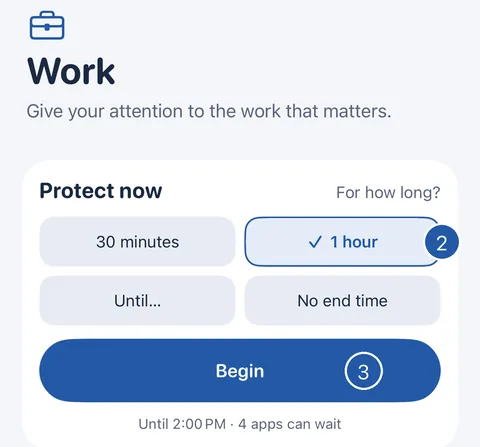
Short answer: Open an area, choose how long under Protect now — 30 minutes, 1 hour, until a time you pick, or no end time — and tap Begin.
Protect an area now
- On Home, tap the area.
- Under Protect now, choose how long: 30 minutes, 1 hour, Until… (a time at least 15 minutes from now) or No end time.
- Tap Begin.
- Decide returns to Home. Once it has confirmed the protection is in place, the card says Protection is on.
Before you begin
Begin works when:
- something is chosen under What can wait;
- Screen Time permission is allowed;
- Decide is unlocked — the first time, Decide shows its plans;
- no other area is protecting. Only one area is protected at a time; Decide says when Begin will be available.
While protection is on
Opening one of the apps shows a screen with what you chose, Go back and Change in Decide. A protection with an end time ends by itself, even if Decide is closed. No end time lasts until you end it.
Still need help?
Write to us by email. It helps to say what happened, what you expected, and your iOS version. In Decide, Settings → Contact Us opens a message to the same address.