How do I schedule protection, once or every week?
Short answer: In an area, under When it matters, tap Add time. Choose Once (a date) or Repeats (days of the week), set when it starts and ends, and tap Save. Decide protects that time even when the app is closed.
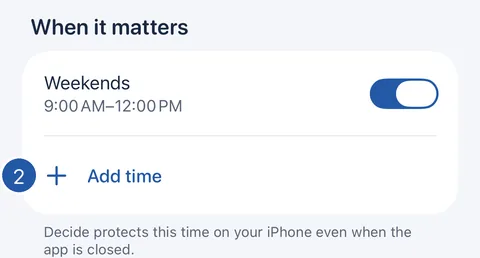
Open Add time
- On Home, tap the area.
- Under When it matters, tap Add time.
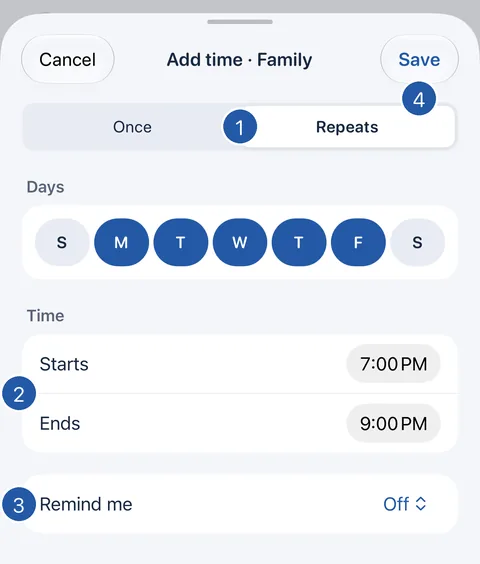
Choose the time and save
- Choose Repeats and the days, or Once and the date. Add time opens on Repeats.
- Set Starts and Ends. A time can run overnight; Decide says when it ends the next morning.
- If you like, choose Remind me: 5 or 15 minutes before.
- Tap Save. The sentence at the foot of the sheet says exactly when the area will be protected.
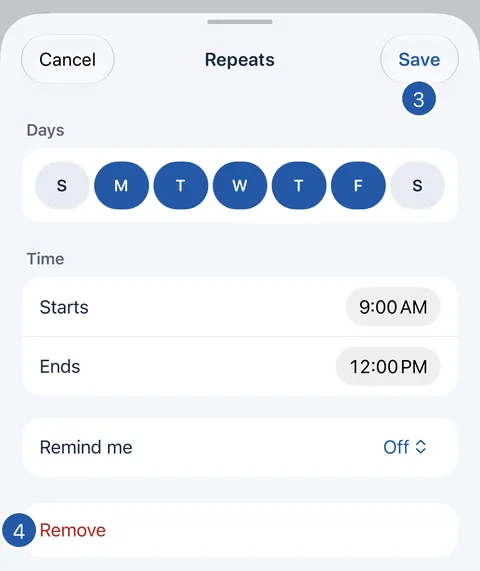
Change, pause or remove a time
- On Home, tap the area.
- Under When it matters, use a time’s switch to turn it off without deleting it, or tap the time to open it.
- Change it and tap Save.
- Or tap Remove to delete it.
What Decide checks before saving
Decide explains under “Before you save” if a time:
- is shorter than 15 minutes — iPhone can’t watch shorter times;
- overlaps another time in the same area, or a time in another area;
- would make more scheduled times than iPhone watches at once.
Reminders and scheduled times
A reminder is an ordinary notification showing the area name. It follows your notification settings and Focus, and may arrive quietly or late. It doesn’t start or stop protection: the schedule does that by itself.
Scheduled times run only while Decide is unlocked. If iPhone won’t take a time, the area says Not scheduled yet, and Decide tries again the next time you open it.
Still need help?
Write to us by email. It helps to say what happened, what you expected, and your iOS version. In Decide, Settings → Contact Us opens a message to the same address.