How do I set up an area?
Short answer: Open an area from Home, choose the apps that can wait under What can wait, then protect it now or add times under When it matters.
The eight areas
Decide has eight areas: Family, Work, Sleep, Education, Health, Personal, Friends and Faith. Each has its own short intention, such as “Give your attention to the work that matters.” Names and intentions are fixed.
When you first open Decide you choose which areas Home shows. You can show or hide any of them later.
Set up an area
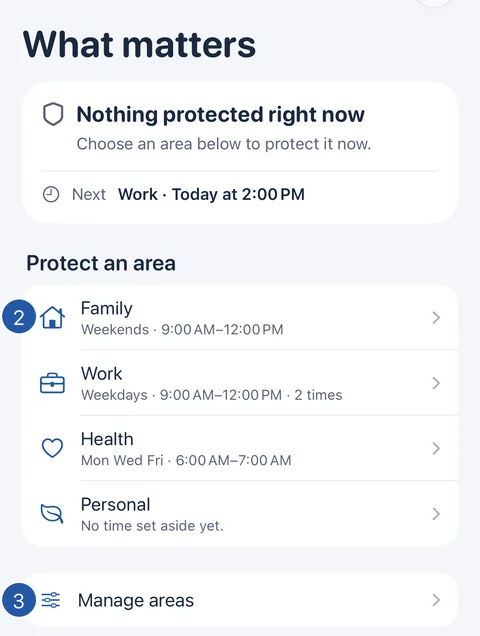
- Open Decide. Home is titled What matters.
- Tap an area in the list.
- To show or hide areas, tap Manage areas at the foot of Home and use each area’s switch.
- In the area, under What can wait, tap Choose apps.
- Then protect the area now under Protect now, or add regular times under When it matters.
Hiding an area
Hide this area, at the foot of an area’s screen, takes it off Home. Its apps and times are kept, and its times don’t run while it is hidden. Show it again from Manage areas.
An area that is protecting can’t be hidden: end protection first.
Still need help?
Write to us by email. It helps to say what happened, what you expected, and your iOS version. In Decide, Settings → Contact Us opens a message to the same address.