How do I choose the apps that can wait?
Short answer: In an area, under What can wait, tap Choose apps and select the specific apps in Apple’s Screen Time list. Decide protects individual apps, not whole categories.
Choose apps
- On Home, tap the area.
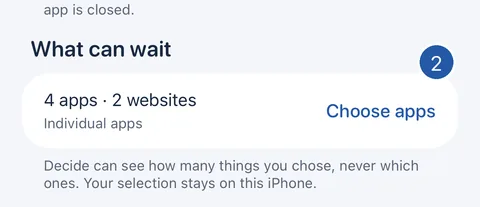
- Under What can wait, tap Choose apps.
- In Apple’s list, tap a category to see its apps, then select each app that can wait.
- Confirm your choice to close Apple’s list. The area shows how many apps you chose.
Individual apps, not categories
Decide protects specific apps so that a Mini Break can open just one of them when you need it. If you select a whole category, Decide doesn’t save it and asks you to choose its apps individually. Websites you select in Apple’s list are kept.
What can wait can’t be changed while that area is protecting. End protection first.
What Decide can see
Apple’s list shows you app names; Decide receives only a sealed reference from Screen Time. It can see how many things you chose, never which ones, and your selection stays on this iPhone.
If Decide says “That is more than Decide can protect at once”, choose fewer apps.
Still need help?
Write to us by email. It helps to say what happened, what you expected, and your iOS version. In Decide, Settings → Contact Us opens a message to the same address.