What happens if I turn off Screen Time permission for Decide?
Short answer: Without Screen Time permission, Decide stops applying protection and no longer shows Protection is on. Your areas, apps and times are kept, and allowing the permission again brings them back into use.
What changes
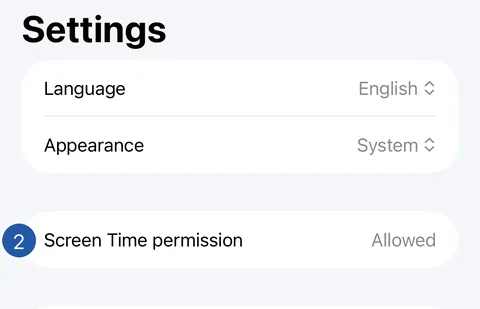
Decide checks the permission every time it opens. While it isn’t allowed, Decide applies no protection and starts no scheduled time; Settings → Screen Time permission says Not allowed. Starting protection explains that permission was not given.
What iOS itself does to apps that were already set aside at the moment you turn the permission off isn’t something Decide controls. Open Decide afterwards so it can check.
Allow it again
- On Home, tap the gear to open Settings.
- Tap Open Settings under Screen Time permission.
- In iPhone Settings, under Screen Time, allow Decide.
- Return to Decide. Settings shows Allowed, and your areas and times are used again.
To end protection, use End protection or Stop all protection instead: they are designed to remove what Decide applied and keep the permission for next time.
Still need help?
Write to us by email. It helps to say what happened, what you expected, and your iOS version. In Decide, Settings → Contact Us opens a message to the same address.