How do I restore a purchase?
Short answer: Decide checks your purchases with Apple each time it opens, so after reinstalling it usually unlocks by itself. If it doesn’t, tap Restore Purchases in Settings, signed in with the Apple Account you used to buy.
Restore Purchases
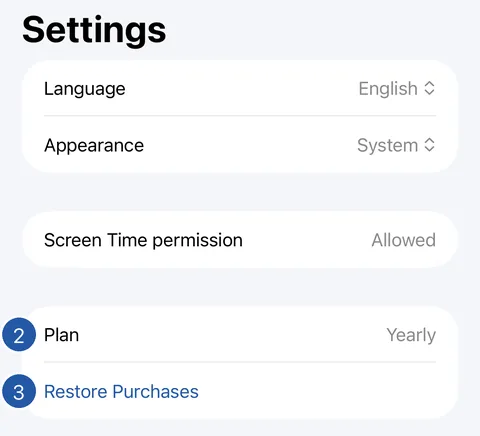
- On Home, tap the gear to open Settings.
- Look at Plan: if it shows your plan, there is nothing to restore.
- Otherwise, tap Restore Purchases. Restore Purchases is also on the purchase screen.
- When Apple confirms the purchase, Decide unlocks.
If nothing is found
“No earlier purchase was found for this Apple Account.” — check which Apple Account this iPhone uses for purchases. Purchases belong to the Apple Account that made them.
“Purchases couldn’t be restored right now. Try again later.” — check your connection and try again.
If you already have a plan, restore it rather than buying again.
Still need help?
Write to us by email. It helps to say what happened, what you expected, and your iOS version. In Decide, Settings → Contact Us opens a message to the same address.